Restarting the VUE Application Wrapper Service
*** This article does not apply to PPC's and sites running the Pixel client.
For testing centers using a Workgroup scenario, the VUE Application Wrapper runs on the administrative computer. For testing centers using a Server Scenario, the VUE Application Wrapper runs on the server used for Pearson VUE testing.
- Click the Windows start menu button at the bottom left corner of the screen and type the word Services. This will launch the Services Desktop app on the computer.
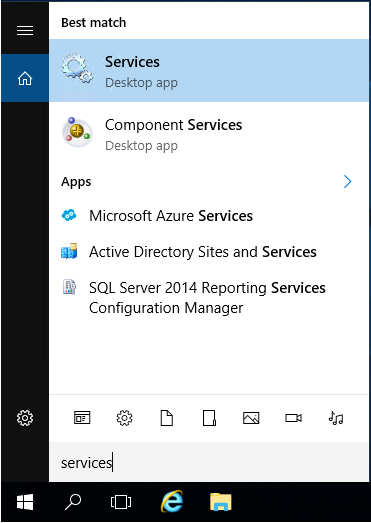
-
In the Services window, locate the VUE Application Wrapper in the list of services.
If you do not see the VUE Application Wrapper service in the list, repeat these same steps on the server used for your Pearson VUE software installation.
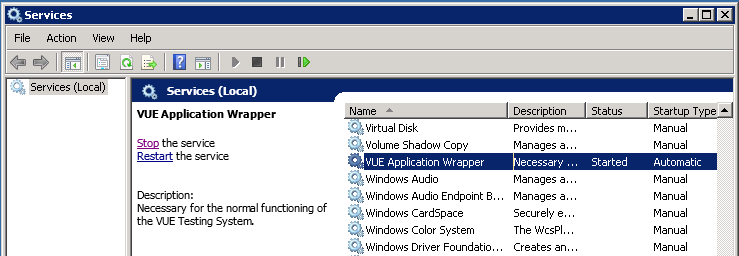
- Click on the option to Restart (or Start) the service. This should take up to 1 minute to complete.
- Once completed, attempt to run the RMA or log in to Admissions Manager. If you continue to have issues, please contact the VUE technical support team.
Link to VUE technical support phone numbers Return to top of document